For resale and used-item listing photos

Listing photos that keep condition details visible.

Prepare clean hero images, keep close-ups and condition evidence, review each photo, and download approved files by product.

Prepare my listing photos

1–20 photos per batch · 20 preview credits for new workspaces · No card needed to start

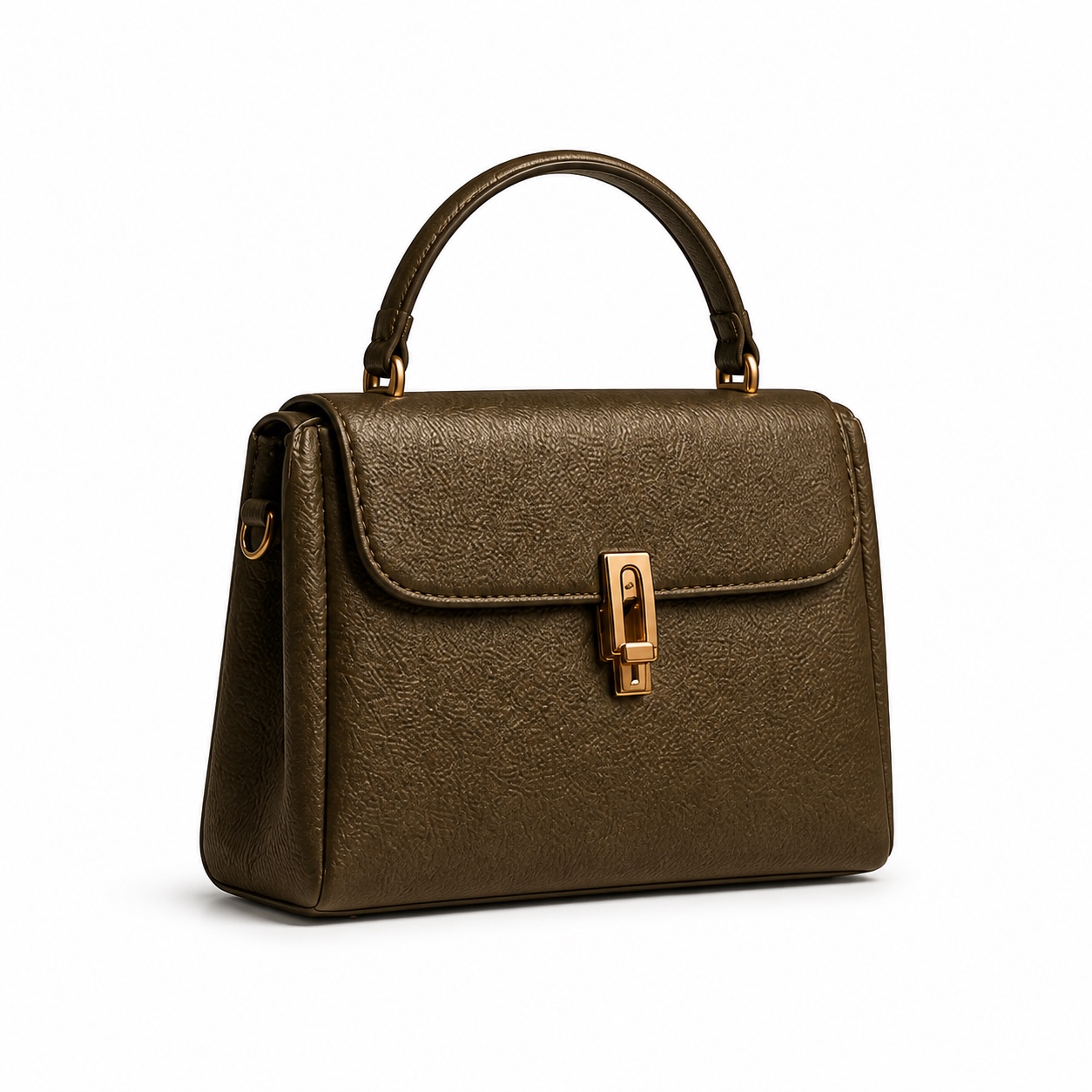
An illustrative leather handbag on a white background
Workflow illustration. This image is not evidence of a customer photo processed by productphotos. Inspect results from your own photos before deciding whether to use them.

Choose what each photo should show.

Hero and angle photos

Remove the background and compose the foreground on a 2000 × 2000 white canvas. This batch workflow does not use generative scene editing.

1 credit per new cutout. Check edges, logos, labels, color, and item completeness before approving.

Detail and condition photos

Keep close-ups of labels, stitching, scratches, wear, and included accessories. These roles retain the original image rather than performing a cutout.

No cutout credits. Export retains the encoded image and orientation while removing private metadata.

One photo session, one continuous workflow.

  1. 1

    Upload

    Add 1–20 JPG, PNG, or WebP photos. Start with one item or a small photo session.

  2. 2

    Group and choose roles

    Keep each item's photos together. Mark hero, angle, detail, and condition photos before processing.

  3. 3

    Prepare backgrounds

    Hero and angle photos use foreground separation. Detail and condition photos keep the uploaded image.

  4. 4

    Review

    Compare every result with its original. Check labels, color, edges, material, and visible wear before approving.

  5. 5

    Download

    Choose approved photos and prepare a ZIP organized by product. Unresolved photos stay in the batch.

Example: six photos of one used handbag.

This is a photo plan, not a processed customer case. Choose two hero/angle photos for white-background preparation, two label or stitching close-ups as detail, and two wear photos as condition.

  • Two new cutouts use 2 credits.
  • Four evidence photos keep the uploaded image and use no cutout credits.
  • Review all six photos, then download the approved selection in its product folder.

A technically successful cutout can still need correction. Manual approval is required; the tool does not certify product accuracy or marketplace acceptance.

Estimate your listing-photo cost

Count photos needing background removal. Detail and condition photos retain their originals and use no cutout credits.

40 credits estimated per month for 40 cutouts at 1 credit each, among 120 total photos. 80 original evidence photos use no cutout credits.

Lowest published price for a single offer covering this estimate:

Creator: $20/month · 200 credits

Boost: $9 one-time · 50 credits

New guest workspaces start with 20 preview credits. This estimate does not subtract your current balance or trial credits.

Each batch holds 1–20 photos. Monthly totals cover multiple batches and do not increase that limit.

Credits are reserved when processing starts and returned if the job ultimately fails. A completed result uses its processing credits before human approval. Reprocessing an existing result costs another 1 credit; manual mask corrections use no additional cutout credits.

These quotes cover first-pass background removal only. Other AI edits and reprocessing cost extra. Check purchase availability on Pricing.
Questions before you start

Will it hide scratches or rewrite my product?

The listing batch separates the foreground and changes the canvas; it does not generate a replacement product. Mark scratches and wear photos as condition to retain their original image. Segmentation can make mistakes, so compare every output with the source.

Is this an eBay, Poshmark, or Mercari preset?

The current output is a general 2000 × 2000 white-background JPG for hero and angle photos. Platform-specific rules and automatic marketplace publishing are not included. Check your marketplace's current requirements before uploading.

Can I upload iPhone HEIC photos or 100 photos at once?

Input is JPG, PNG, or WebP, up to 10 MB and 8 megapixels per photo. Convert HEIC before uploading. The batch limit is 20 photos; larger sessions need separate batches. Grouping is manual.

What if I only need local resizing or compression?

Batch Image Resizer and Batch Image Compressor run in your browser and use no online cutout credits. Compression uses a quality setting and cannot guarantee a particular target file size.

How do private storage and downloads work?

Originals expire seven days after upload and results seven days after creation. Download the photos you want to keep before expiry. A browser ZIP has a 24 MB image budget; large selections may need smaller product groups or fewer photos. Preparing or requesting a ZIP does not confirm that your browser saved it.

Try one item's photos first.

Use the actual results and review effort to decide whether the workflow fits.

Start a listing batch